The UDISE Plus Report Module is one of the most important sections of the UDISE+ portal, helping schools review, verify, and finalize their data before submission. Whether you need to identify errors, download official reports, compare data with previous years, or generate your 100% Completion Certificate, the Report Module brings everything together in a single dashboard.
Many schools face challenges while completing UDISE+ data entry. Missing records, validation errors, red-marked sections, and incomplete information often delay the submission process. Manually checking every section can be time-consuming, especially when submission deadlines are near.
The UDISE+ Report Module solves these problems by providing detailed reports, automatic validation checks, downloadable documents, and data comparison tools. It enables schools to quickly identify issues, correct inaccuracies, and ensure that their data is complete and submission-ready.
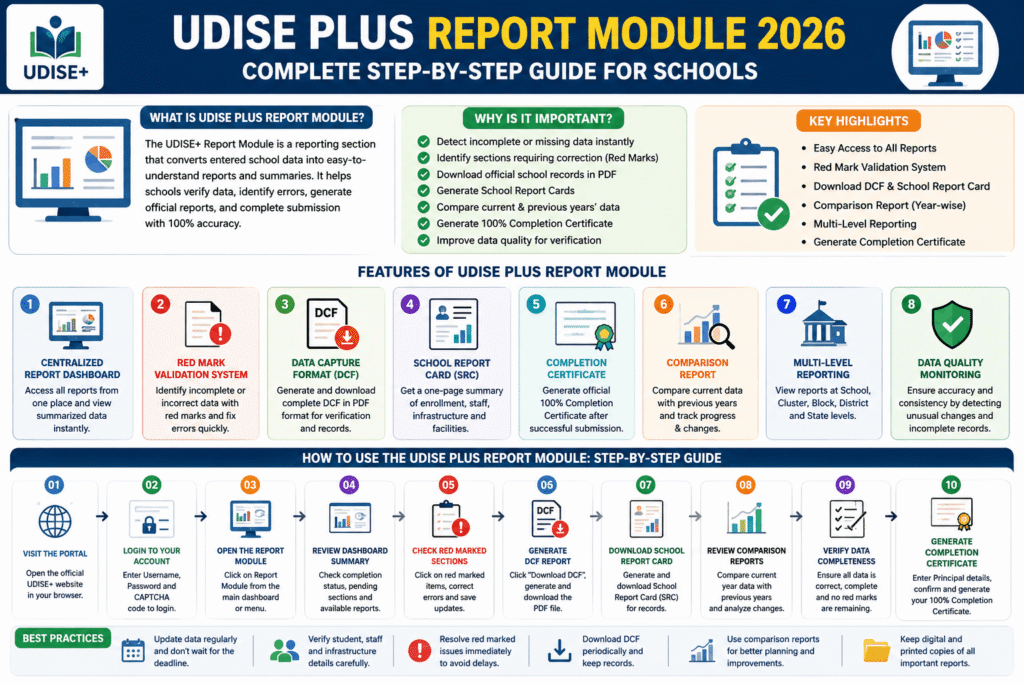
What is the UDISE Plus Report Module?
The UDISE+ Report Module is a dedicated reporting section within the UDISE+ system that converts entered school data into easy-to-understand reports and summaries. It allows schools, administrators, and education officials to monitor data quality, verify information, and generate official documents required for record-keeping and compliance.
The module automatically collects data from various sections of the UDISE+ portal and presents it in a structured format. Schools can use these reports to identify missing information, validate records, and ensure that all required fields have been completed before final submission.
In addition, the Report Module provides access to official documents such as the Data Capture Format (DCF), School Report Card (SRC), Completion Certificate, and Comparison Reports that help schools analyze year-over-year changes.
Why is the UDISE+ Report Module Important?
The Report Module plays a critical role in maintaining data accuracy and transparency within the education system.
Key Benefits
- Detect incomplete or missing data instantly.
- Identify sections requiring correction through Red Marks.
- Download official school records in PDF format.
- Generate School Report Cards for administrative use.
- Compare current and previous years’ data.
- Verify enrollment and infrastructure information.
- Generate the official 100% Completion Certificate.
- Improve data quality before district and state-level verification.
- Support educational planning and policy decisions.
Main Features of the UDISE Plus Report Module
1. Centralized Report Dashboard
All school reports are available from a single dashboard. Instead of navigating multiple sections, users can access summaries, validations, and downloadable reports from one place.
2. Red Mark Validation System
The system automatically highlights incomplete or incorrect sections with red indicators. These alerts help users quickly locate and correct errors before submission.
3. Data Capture Format (DCF) Download
Schools can generate and download the complete DCF in PDF format. This document contains all entered information and serves as an official reference for verification and audits.
4. School Report Card (SRC)
The School Report Card provides a concise summary of important school information, including:
- Student enrollment
- Teacher details
- Infrastructure status
- Facilities available
- Performance indicators
This report is useful for school administrators, education departments, and inspections.
5. Completion Certificate Generation
Once all data is validated and finalized, schools can generate the official UDISE+ Completion Certificate. This certificate confirms that the school’s data submission process has been successfully completed.
6. Comparison Report
The Comparison Report allows schools to compare current-year data with previous years. This helps identify:
- Enrollment changes
- Infrastructure improvements
- Staff variations
- Data inconsistencies
- Potential duplicate or incorrect student records
7. Multi-Level Administrative Reporting
Reports can be viewed and analyzed at different administrative levels:
- School Level
- Cluster Level
- Block Level
- District Level
- State Level
This enables better monitoring and decision-making throughout the education system.
8. Data Quality Monitoring
The module helps ensure that submitted data meets quality standards by highlighting unusual changes and incomplete records before final approval.
How to Use the UDISE Plus Report Module: Step-by-Step Guide (2026)
Follow these simple steps to access and use the Report Module efficiently.
Step 1: Visit the Official UDISE+ Portal
Open the official UDISE+ portal using your web browser. Ensure you have a stable internet connection for uninterrupted access.
Step 2: Login to Your Account
Enter your:
- Username
- Password
- CAPTCHA Code
Click the Login button to access your school dashboard.
Step 3: Open the Report Module
After logging in, locate the Report Module option from the main menu or dashboard.
Click on it to access all available reports and validation tools.
Step 4: Review Dashboard Summary
The system will display an overview of your school’s submitted data, including:
- Completion status
- Pending sections
- Validation alerts
- Available reports
Carefully review this information before proceeding.
Step 5: Check Red Marked Sections
If any sections contain errors or incomplete information, they will be highlighted with red marks.
Click the highlighted section to:
- Review missing data
- Correct errors
- Save updated information
Repeat until all red marks are removed.
Step 6: Generate the DCF Report
Navigate to the Download DCF option.
- Click Generate Report
- Wait for processing
- Download the PDF copy
Review the DCF carefully to ensure all information is accurate.
Step 7: Download the School Report Card
Select the School Report Card (SRC) option.
The system will generate a one-page summary of your school’s profile, enrollment statistics, staff information, and infrastructure details.
Download and save the report for official records.
Step 8: Review Comparison Reports
Open the Comparison Report section.
Compare current data with previous years to identify:
- Enrollment growth or decline
- Staff changes
- Infrastructure updates
- Data anomalies
Make corrections if any inconsistencies are found.
Step 9: Verify Data Completeness
Before final submission, confirm:
✔ Student records are accurate
✔ Teacher information is updated
✔ Infrastructure details are complete
✔ No red marks remain
✔ Reports match actual school records
Step 10: Generate the Completion Certificate
Once all validations are complete:
- Enter Principal/Headmaster details
- Confirm submission
- Click Generate Certificate
The system will create your official UDISE+ 100% Completion Certificate.
Download and store it for future reference.
Common Issues and Solutions
Red Marks Still Appearing
- Revisit highlighted sections.
- Check mandatory fields.
- Save information after making corrections.
DCF Not Generating
- Refresh the portal.
- Ensure all sections are completed.
- Try generating the report again.
Certificate Option Not Visible
- Verify that all data validations are complete.
- Ensure no pending errors remain.
Incorrect Comparison Data
- Review previous year’s records.
- Update current data where necessary.
Best Practices for Schools
- Complete data entry regularly instead of waiting until the deadline.
- Verify student enrollment records carefully.
- Cross-check teacher and infrastructure details.
- Download DCF reports periodically for review.
- Resolve red-marked sections immediately.
- Keep digital and printed copies of all reports.
- Review comparison reports annually for better planning.
Final Thoughts
The UDISE Plus Report Module 2026 is an essential tool for schools to validate, review, and finalize their educational data efficiently. From identifying red-marked errors to generating official reports and completion certificates, the module simplifies the entire reporting process.
By regularly reviewing reports, correcting data issues promptly, and utilizing comparison tools, schools can maintain accurate records and ensure smooth UDISE+ submissions. Proper use of the Report Module not only improves data quality but also supports better educational planning at school, district, and state levels.